1. Start here
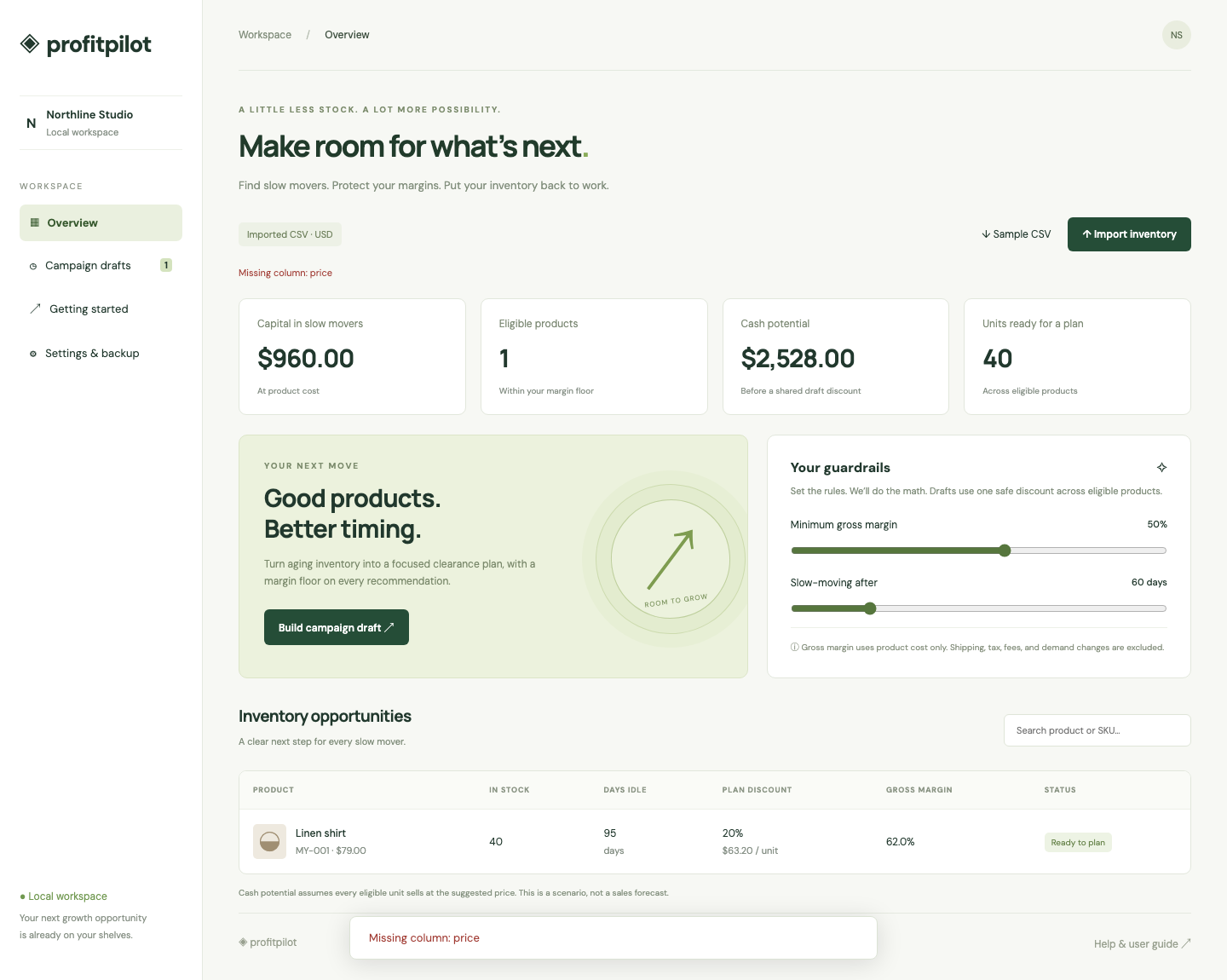
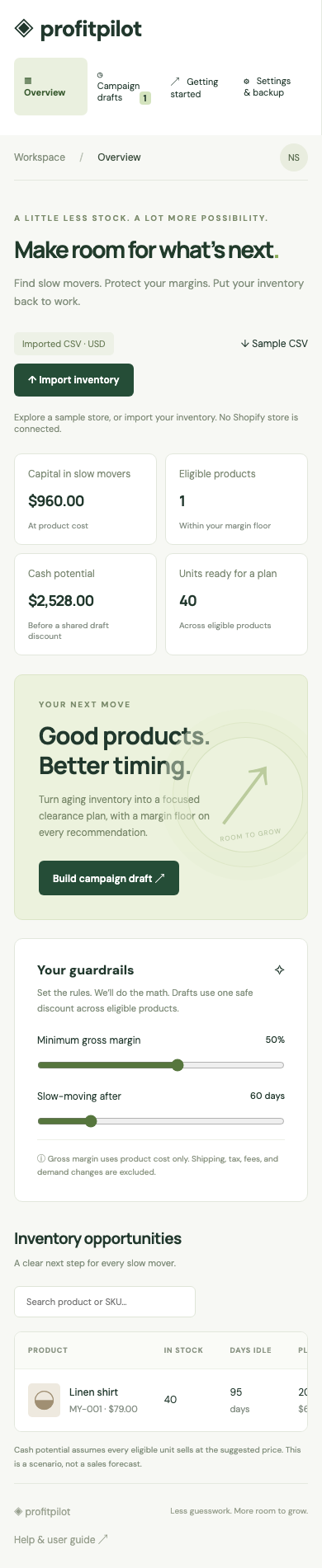
ProfitPilot helps you choose discounts for products that have stopped selling. It checks product cost against your minimum gross margin, then helps you save a clearance plan.
- For local practice, open localhost:3080 while the app is running. On this Mac, double-click Start ProfitPilot.command in the project folder if it is stopped.
- For the connected test app, open Shopify → Apps → ProfitPilot. Your developer must keep the development server running.
- Check the label above the summary cards. Sample data means the numbers are examples. Shopify catalog means data came from the connected store.
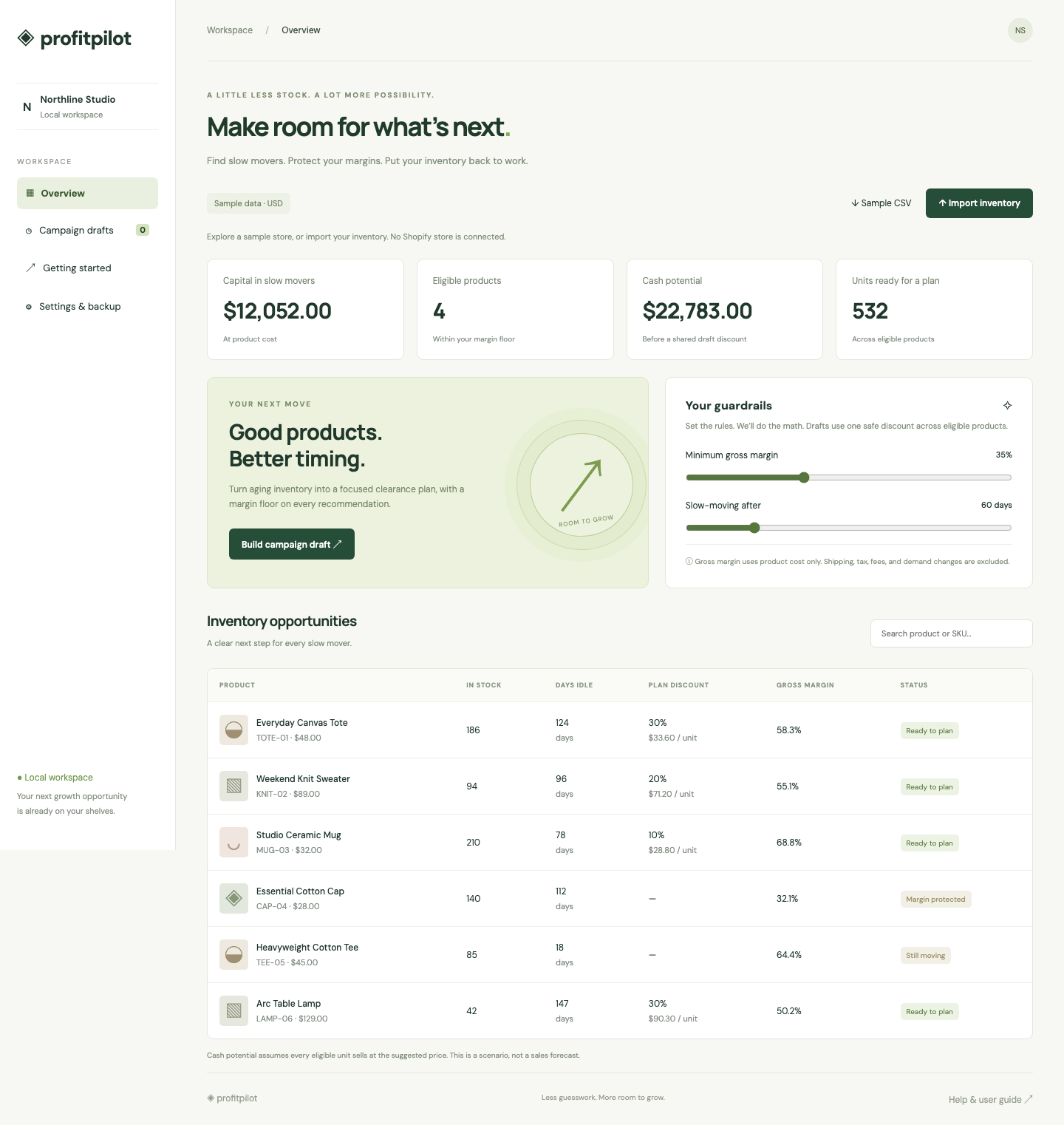
| Card | What it means |
|---|---|
| Capital in slow movers | Product cost × stock for products that meet your idle-day threshold. This is money tied up at cost, not expected profit. |
| Eligible products | Products that meet the idle-day threshold, have stock and can support at least a 5% discount within your margin floor. |
| Cash potential | Scenario revenue if all eligible units sell at their individual suggested prices. A saved campaign may use a different shared rate. |
| Units ready for a plan | The total stock of eligible products. |
Cash potential is not a forecast or a promise. Discounts may not increase sales, and gross margin does not include shipping, fees, tax or advertising.
2. Open and sync Shopify
- Open ProfitPilot in the test store. Sign in to Shopify if asked.
- Check that the store shown in the workspace is correct.
- Click Sync Shopify. Wait until the button becomes available again.
- Read the result message. Excluded variants need attention in Shopify before they can be used.
- Import verified idle days as explained in the next section. New catalog products show Idle days unknown until you do.
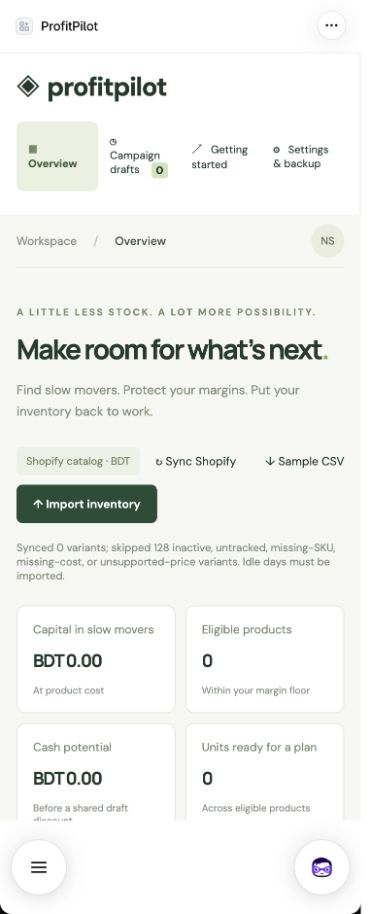
Why a product might be excluded
In Shopify, make sure the product is Active, its variant has a unique SKU, inventory tracking is enabled, and Cost per item is entered. Then sync again. Cost data may require the store owner to grant the staff member permission to view product costs. This version supports prices with up to two decimal places.
Supported currencies: USD, EUR, GBP, CAD, AUD, BDT and INR. The app does not convert currencies. Inventory is combined across locations. Orders and customer records are not requested; days since last sale must come from your own verified sales records.
3. Prepare and import inventory
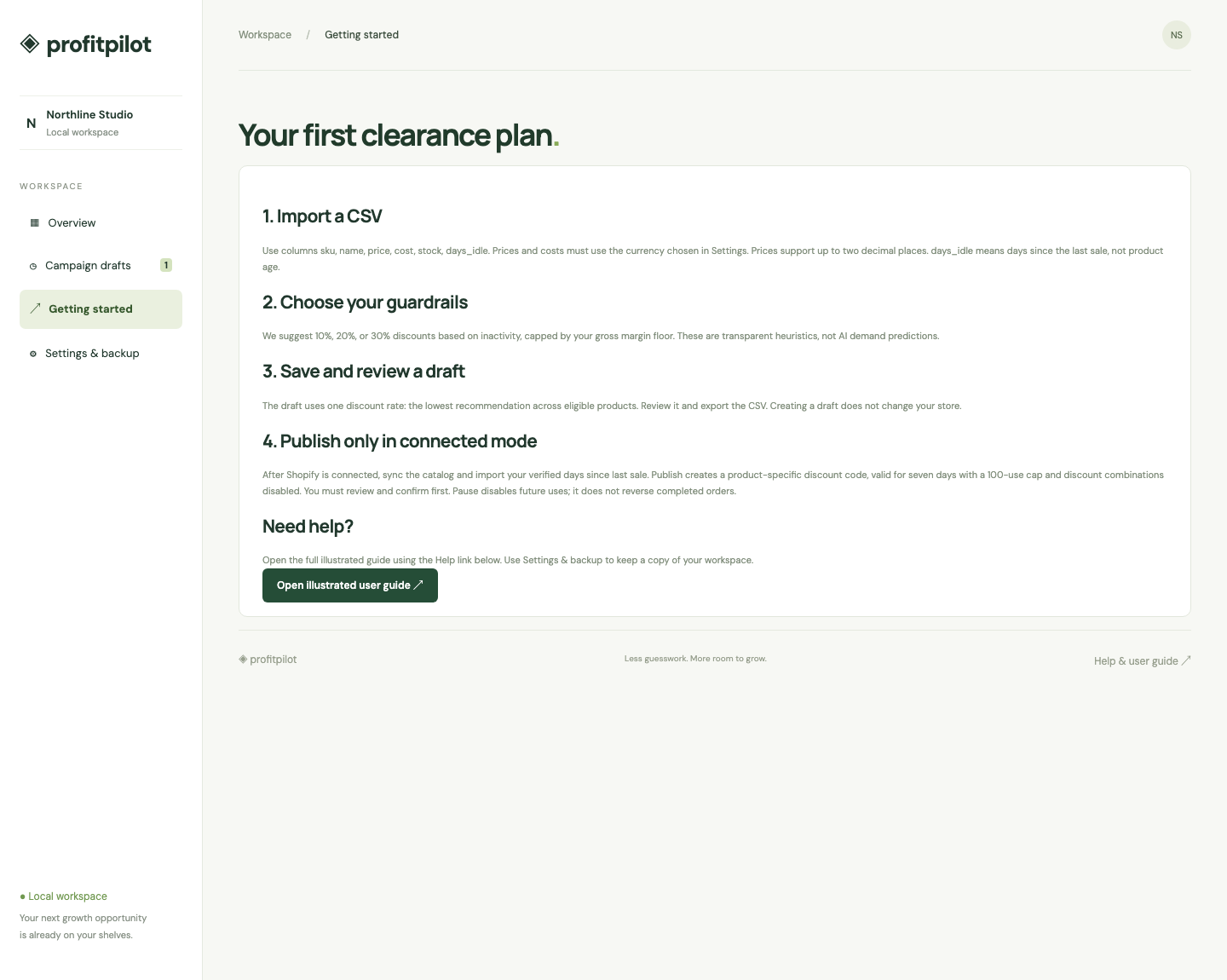
- Click Sample CSV to download a correctly formatted example.
- Open it in your spreadsheet program. Keep the six column headings exactly as shown below.
- Replace sample rows with your data. Use one row per unique variant SKU.
- Save or download as CSV, not an Excel workbook.
- Click Import inventory and select your file.
- Review the confirmation and click Confirm. Click Cancel if you chose the wrong file.
| Column | Enter | Example |
|---|---|---|
| sku | A unique variant identifier | SHIRT-001 |
| name | A readable product name | Linen shirt |
| price | Current selling price, without currency symbols | 79.00 |
| cost | Cost of one unit; enter 0 only if it really costs nothing | 24.00 |
| stock | Available units, a whole number | 40 |
| days_idle | Whole days since the most recent sale, verified by you | 95 |
sku,name,price,cost,stock,days_idle
SHIRT-001,Linen shirt,79.00,24.00,40,95
Connected mode: sync first and match Shopify SKUs exactly. The CSV updates days_idle only. Shopify remains the source for price, cost, stock and product identifiers. All six columns are still required for a consistent format. You must reverify idle days within seven days before publishing.
Files must be smaller than 2 MB and contain at most 10,000 rows. Use plain numbers: no currency signs or thousands separators. Negative values, missing values and duplicate SKUs are rejected. A normal Shopify product export does not automatically contain all of these columns.
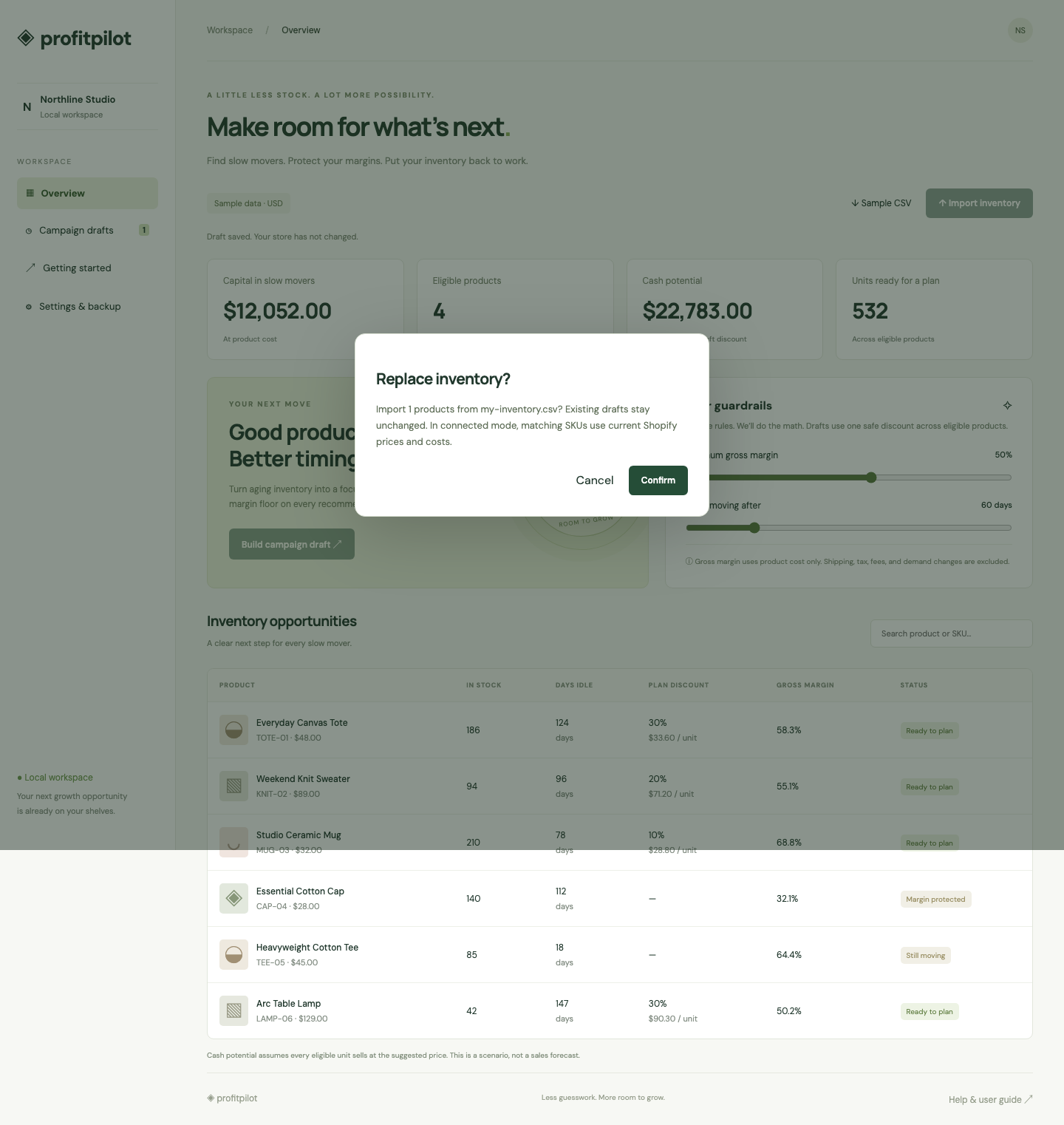
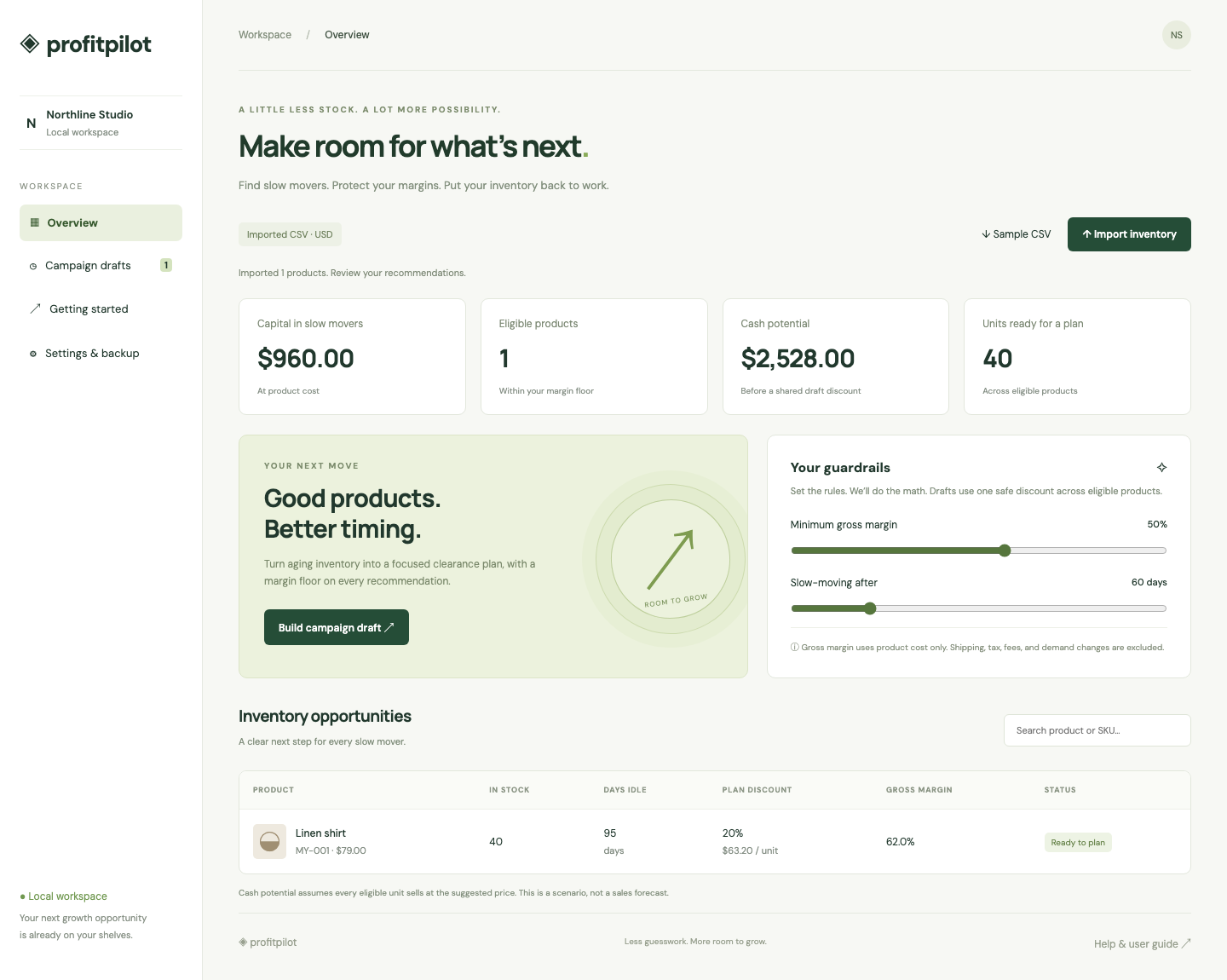
If a file fails validation, the previous inventory remains in place. Fix the reported column or row and upload again.
4. Choose your guardrails
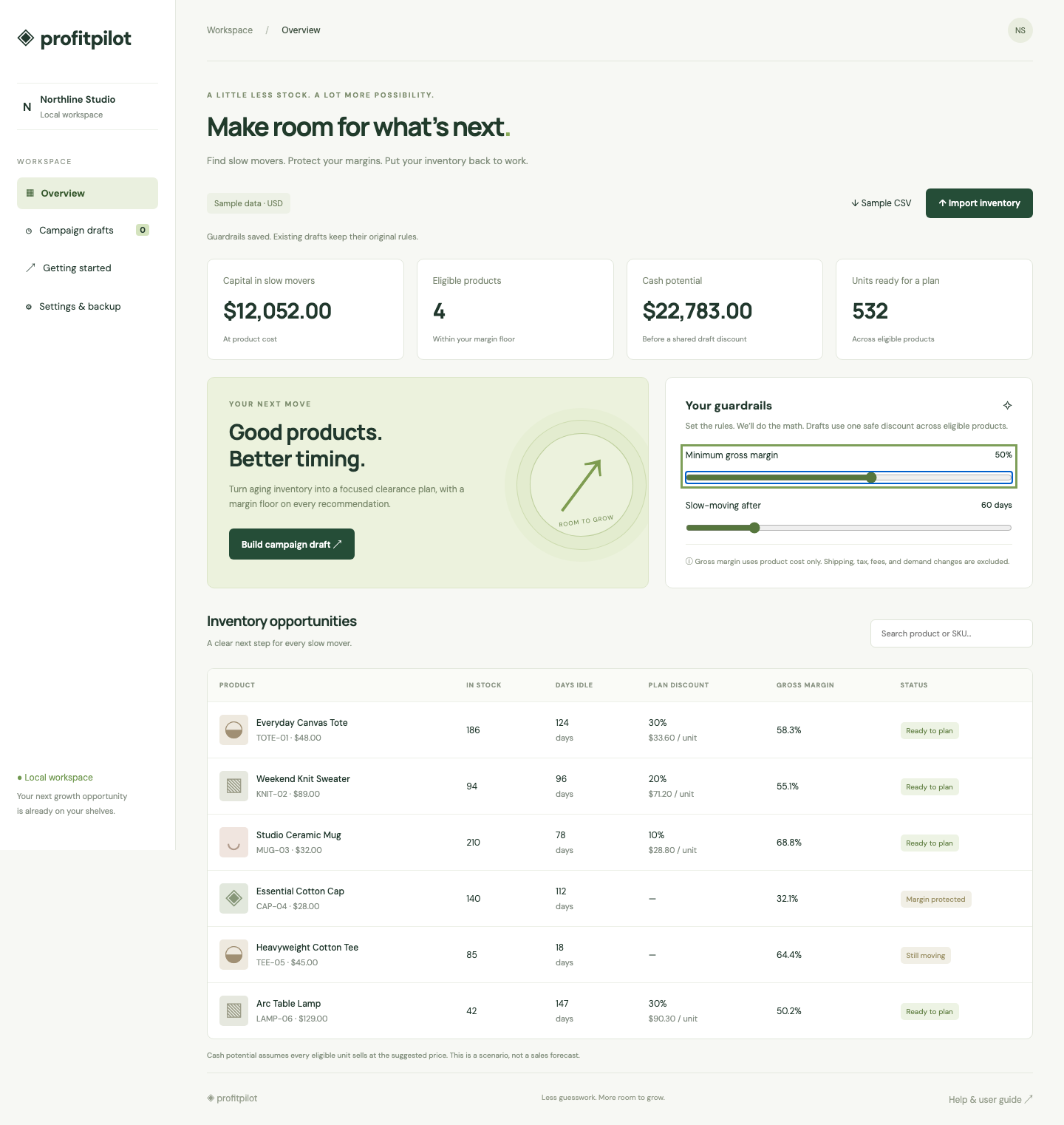
- In Overview, find Your guardrails.
- Move Minimum gross margin to the minimum product margin you will accept, from 10% to 80%.
- Move Slow-moving after to the number of idle days that should qualify, from 30 to 180 days.
- Release the slider to save. The summary and table update. Existing campaign drafts keep their original rules.
Example in plain language
If a product sells for 100 and costs 40, a 20% discount brings its price to 80. Gross margin is (80 − 40) ÷ 80 = 50%. That passes a 35% margin floor, but not a 60% floor.
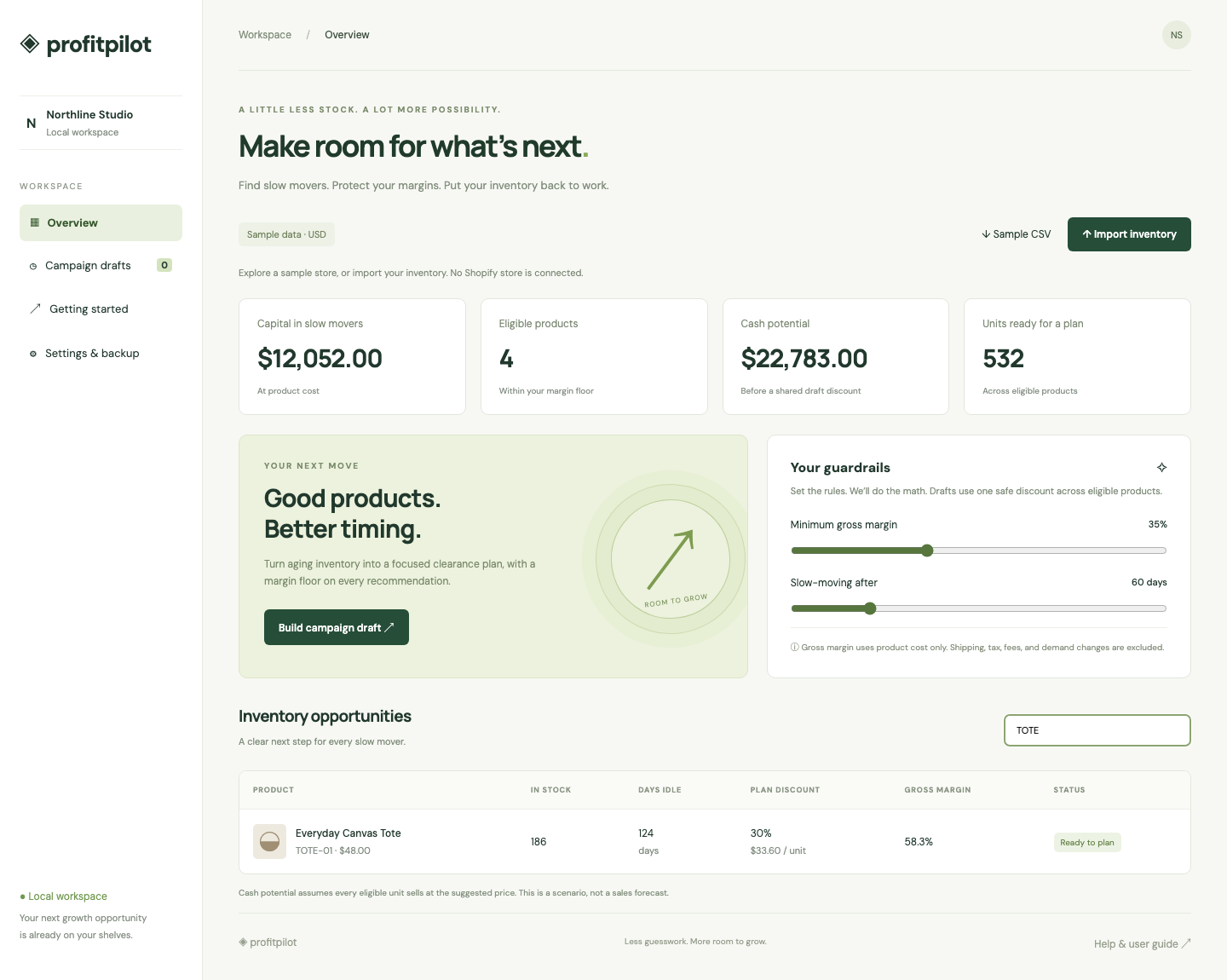
| Status | Meaning |
|---|---|
| Ready to plan | Enough idle days, positive stock and at least 5% safe discount headroom. |
| Still moving | The product has not reached your idle-day threshold. |
| Margin protected | The app cannot suggest at least 5% off within your margin floor. |
| Out of stock | No units are available. |
| Idle days unknown | Connected product has no verified days since last sale. Import them first. |
The app starts with a 10% discount recommendation below 90 idle days, 20% at 90–119 days, and 30% at 120+ days, then reduces that recommendation to fit your margin. These are fixed rules, not AI demand predictions. Search narrows what you see; it does not choose which products enter a campaign.
5. Build and review a campaign
- Click Build campaign draft in Overview.
- The app takes all eligible products and saves a snapshot. You can keep up to 100 drafts.
- Open Review products and prices to see each product, SKU, stock, sale price and gross margin.
- Click Rename to give the campaign a useful name.
- Click Export CSV to download the plan for your team.
- To remove a draft, click Delete, read the warning, then confirm.
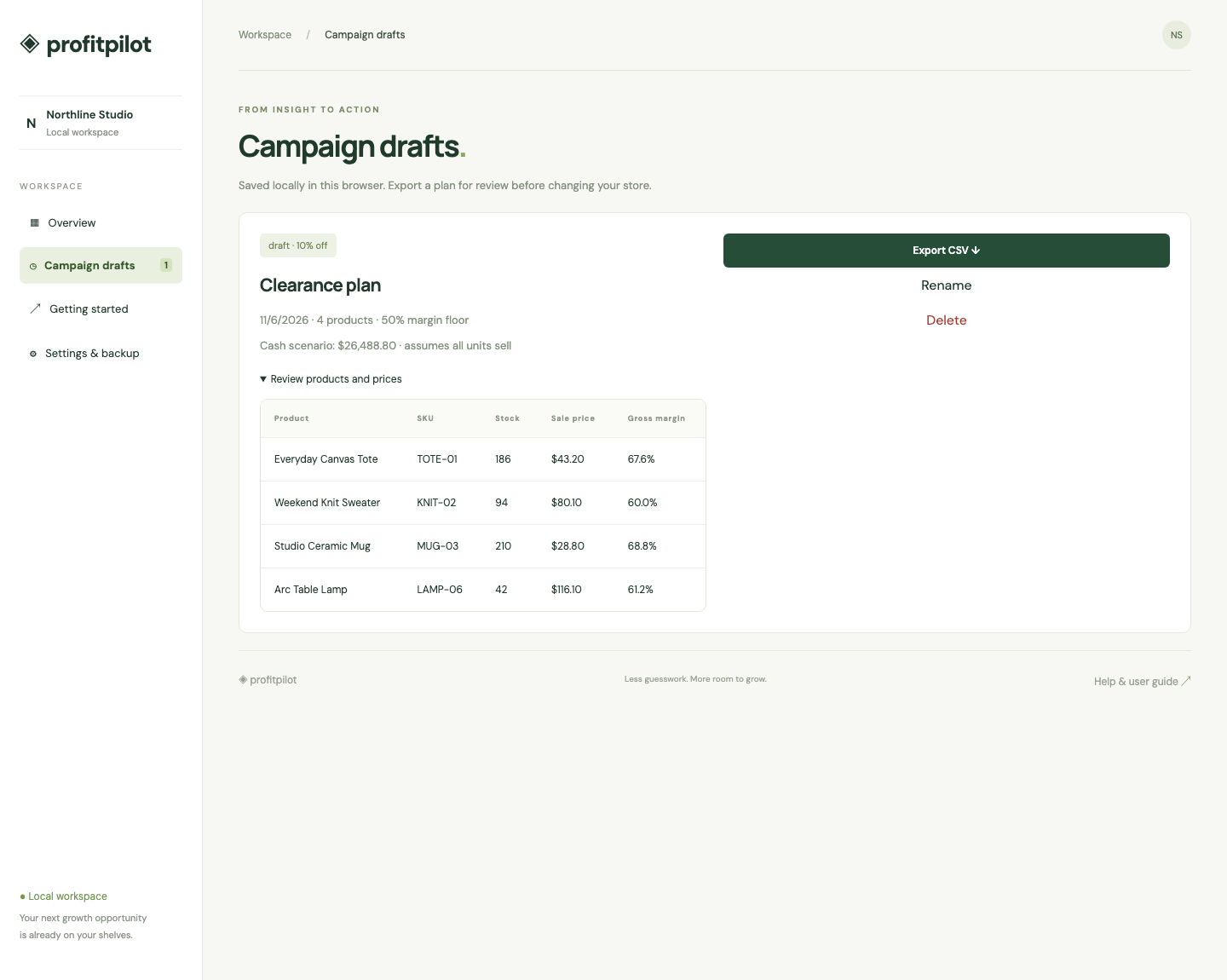
One code, one rate. The campaign uses the lowest recommended discount across its eligible products. If recommendations are 10%, 20% and 30%, the draft uses 10% for every included product. Review the draft prices before publishing. Its cash scenario may differ from the Overview scenario.
Connected publishing currently supports up to 100 eligible variants per draft. Changing guardrails does not rewrite existing drafts. To use fresh rules or a changed catalog, create a new draft after syncing.
6. Publish, check and pause
- Open Campaign drafts and review the selected products.
- Click Review & publish.
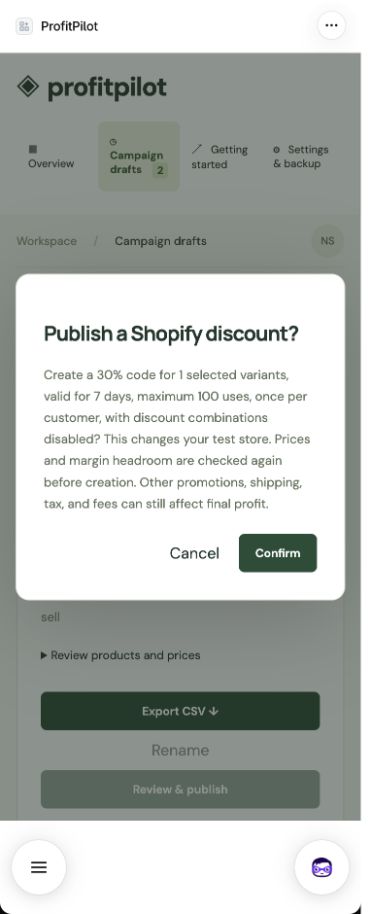
- Read the confirmation: rate, product count, seven-day expiry and 100-use cap.
- Click Confirm only if you want the discount created in this store.
- The app rechecks Shopify prices, costs, stock and idle verification. If they no longer support the plan, it stops and asks you to sync and create a fresh draft.
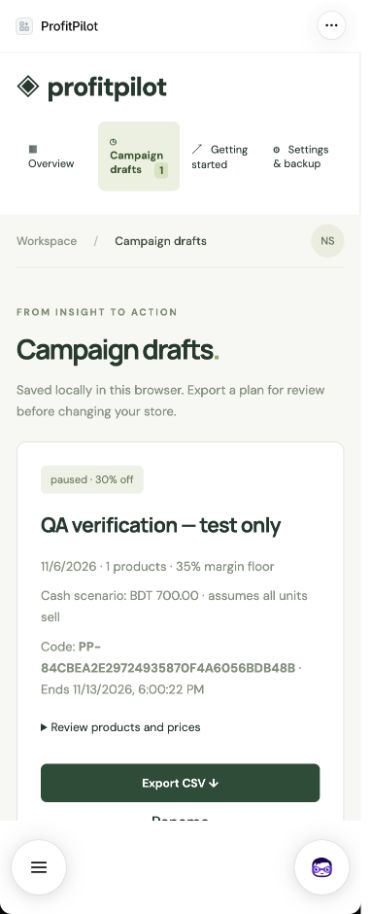
- When status becomes active, copy the displayed code and test it in your store’s checkout with an included product. Confirm the expected reduction before sharing it with customers.
- To stop future uses, click Pause discount and confirm. Completed orders are not reversed.
| Safeguard | Behavior |
|---|---|
| Specific products | Only the variant IDs included in the campaign qualify. |
| Expiry | Seven days after creation. |
| Use limit | 100 redemptions total; this is not a 100-unit cap. |
| Per customer | Once per customer, enforced by Shopify. |
| Combinations | Order, product and shipping discount combinations are disabled on this code. |
If the status is unknown
A network failure can leave the outcome uncertain. Click Reconcile status to look for the existing code. The app will not blindly create a second discount. If no code is found, contact the developer with the campaign name and code; the workspace stays locked until the uncertain campaign is resolved.
Discounts can also be changed directly in Shopify. The app is not a real-time discount monitor. Pause your codes before uninstalling; uninstalling does not automatically remove codes already created in Shopify.
7. Back up and restore
- Open Settings & backup.
- Click Download backup. Keep the JSON file somewhere private: it contains product costs and campaign plans.
- In local mode, click Restore backup and choose a ProfitPilot JSON backup. Confirm replacement only after checking the file.
- Local reset removes your current local workspace and loads the sample data again. Download a backup first.
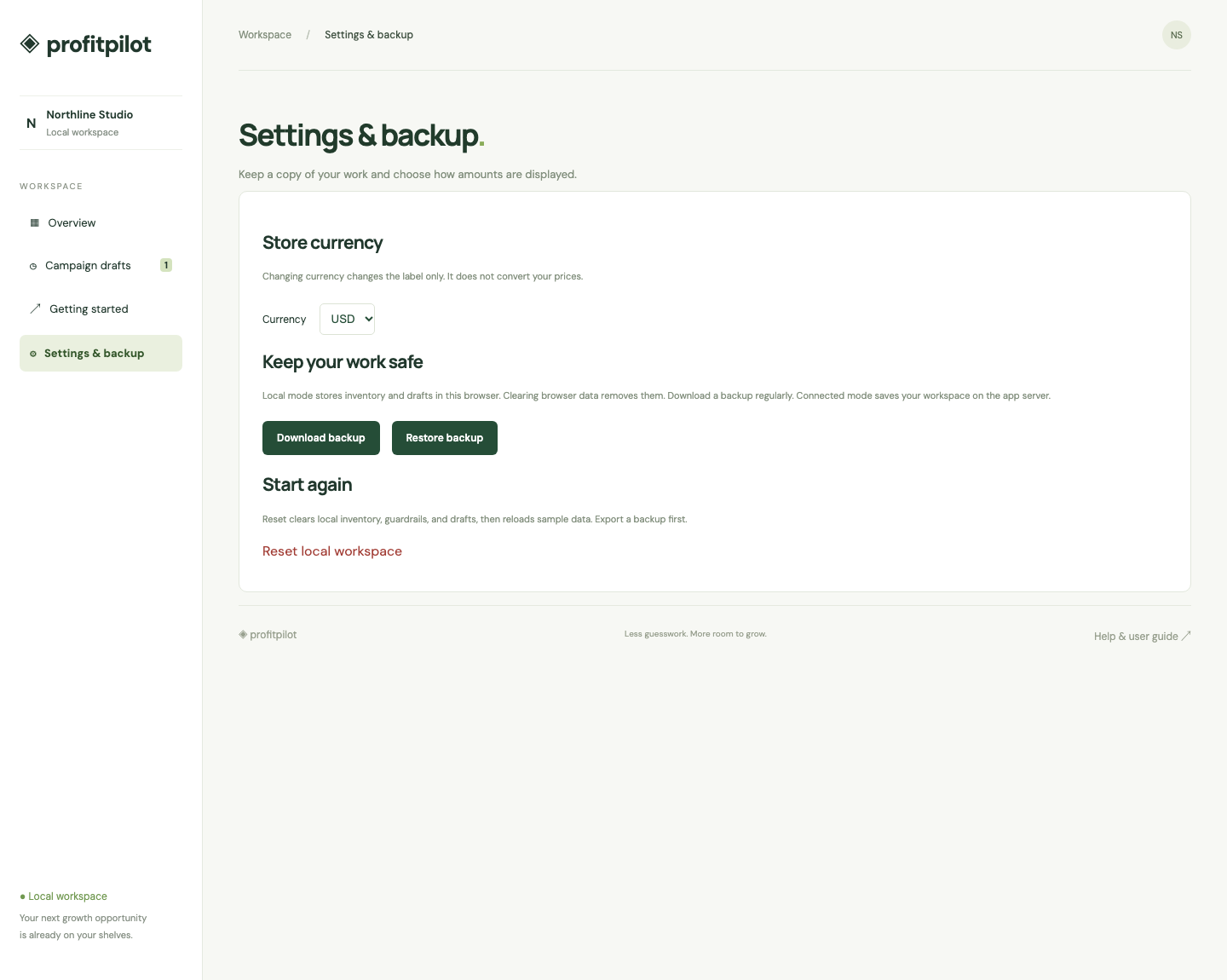
Local changes are stored in this browser on this computer. Clearing browser data can remove them. Connected changes are stored on the app server and survive browser changes. A merchant JSON backup is not a server recovery backup; the app operator maintains database backups.
Currency
In local mode, you can change the currency label in Settings. Amounts are not converted. Connected mode uses your Shopify currency and disables this selector.
8. Fix common problems
| What you see | What to do |
|---|---|
| Missing column | Keep all six CSV headings exactly as shown. Download Sample CSV and start from that. |
| Row number error | Open that row in your spreadsheet. Check numbers, missing values and extra commas. Save as CSV again. |
| Duplicate SKU | Give each variant a unique SKU. In connected mode, fix duplicates in Shopify and sync again. |
| No eligible products | Check stock, cost, margin floor, idle threshold and verified idle days. Do not lower rules just to make an unsafe plan qualify. |
| Synced zero products | Check Active status, SKU, inventory tracking and Cost per item in Shopify. Sync again. |
| CSV SKU not found | Sync first, then ensure the CSV exactly matches an included Shopify variant SKU. |
| Verification older than seven days | Recheck your sales records, import updated days_idle, and create a new campaign. |
| Workspace changed in another tab | Refresh the page. Review the latest data before repeating the action. |
| Browser storage full or blocked | Download a backup, allow browser storage, or use a browser profile with available storage. |
| App will not open | For local mode, start the app. For connected development mode, ask the developer to restart Shopify CLI and use the new preview link. |
| Session expired | Reopen ProfitPilot from Shopify Apps. |
| Code rejected at checkout | Check active/expiry state, included variant, redemption cap, customer use, subscriptions and conflicting discounts. Test in Shopify before distributing the code. |
| Unknown publication status | Use Reconcile status and ask the developer to inspect the code in Shopify. Do not publish a replacement until resolved. |
9. Screens, data and limits
What this release does
CSV validation, saved workspaces, margin rules, local drafts, export, backups, Shopify authentication, catalog sync, verified idle-day import, targeted code creation, reconciliation and pausing are implemented. See the release report for exactly which live workflows were verified.
What requires further setup
Public hosting, App Store approval, production monitoring, merchant support and Shopify App Pricing setup remain launch tasks. This development pilot does not charge merchants. Automatic sales-history analysis, revenue attribution, scheduled clearance, multi-location planning and AI demand forecasting are not included.
Privacy and assistance
The app requests product and inventory read access and discount-write access. It does not request order/customer history or send marketing messages. Uninstall deletes workspace/session records when Shopify delivers the webhook. Keep backups private. For help, send your developer the screen name, error text, and a screenshot with private information removed. Never send passwords or API secrets.
Terms used in the app
SKU: your unique variant code. Variant: a product option such as a size or color. Gross margin: (sale price − product cost) ÷ sale price. Idle days: days since the last sale. Draft: a saved plan that has not changed Shopify. Redemption: one use of a discount code.